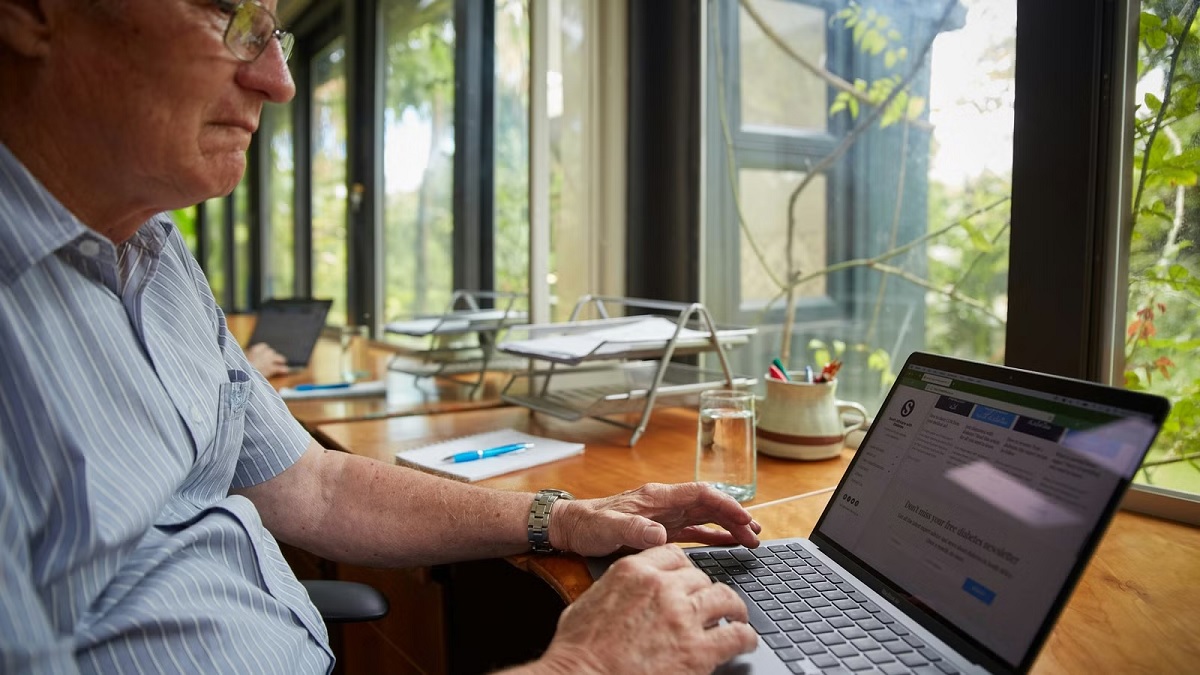
There’s a certain thrill in opening a new computer. But let’s be honest, it can also bring a twinge of worry. Maybe you’re remembering that one wild afternoon you tried to install a printer and somehow changed the language to Japanese. Or maybe you just don’t want to pester someone in your family… again.
Relax. Setting up a new computer doesn’t have to be a hair-pulling experience. Whether you’re in your own home or part of an assisted living community, a handful of thoughtful steps will get you cruising through emails, catching up on news, and seeing grandkids’ photos in no time.
Take It Slow and Don’t Rush
This is a marathon, not a sprint. Unpack each piece and read the quick-start guide before plugging anything in. If it’s a laptop, check the charger first. Sometimes the battery needs a jumpstart right out of the box. Desktop user? Line up all the cords side-by-side, match them to the color-coded ports (yep, don’t be shy about peeking at the guide!), and give yourself plenty of workspace.
Find a Comfortable Spot
Pick a spot with good light, a comfy chair, and space to spread out. Avoid cramming the computer where you used to keep an old phonebook (we’ve all done it). If you’re in an assisted living community, check for dedicated rooms where tech help is on standby. This can be a lifesaver if you run into snags.
Connecting to Wi-Fi Without Losing Your Mind
This step trips up almost everyone the first time. Look for the Wi-Fi icon (it looks like a little fan-shaped radio signal) at the bottom of the screen. Click it, find your wireless network name, and enter the password. If it doesn’t work, double-check the password. Sometimes a sneaky “0” (zero) gets mistaken for an “O”. You’d be shocked how many times that’s all it is.
Setting Up an Email Account
If you already have an email, just sign in. If you’re new, the setup process walks you through. Fill in your name, pick a username (have fun with it, but keep it easy to remember), and jot down your password somewhere safe. Pro tip: use a little notebook dedicated to passwords and stow it nearby but out of plain sight.
Basic Security: Your Computer’s First Shield
Take a minute to run any updates the computer suggests. Yes, it’s boring, but it’ll patch holes and keep things running smoothly. Most computers come with a basic antivirus program. Make sure it’s on, and resist the pop-ups offering to “speed up your computer” for a fee. Those are almost always scams.
Download the Essentials, Skip the Junk
Install only what you need: internet browser, email program, maybe a photo viewer, and video call app for seeing the family face-to-face. Google Chrome, Firefox, or Safari are all safe bets. Ignore those suspicious pop-up “cleaners”. They often cause more harm than help.
Phone a Friend (Or Library Tech Help) When You Get Stuck
Even the most tech-savvy among us get stumped. If you hit a wall, call a grandchild, friendly neighbor, or check if your community library has a digital help desk.
Give Yourself Credit
Truth is, every click and small win adds up. It’s normal to hit speedbumps. Just take a breath, grab a snack, and keep going. Before you know it, you’ll be browsing and emailing like you’ve done it for years. And if you happen to change the language to Japanese again, hey, that’s what the help button’s for!